
How to enable notifications
Step by step, for each browser and device, if "Notify me" in a room did not produce a notification.
Why you may not see notifications
Right after you press "Notify me" in a room, the site sends a test notification. If you did not see it, notifications are blocked somewhere: in the browser for this site, or in the operating system. Check both, in that order.
Chrome and Edge on macOS
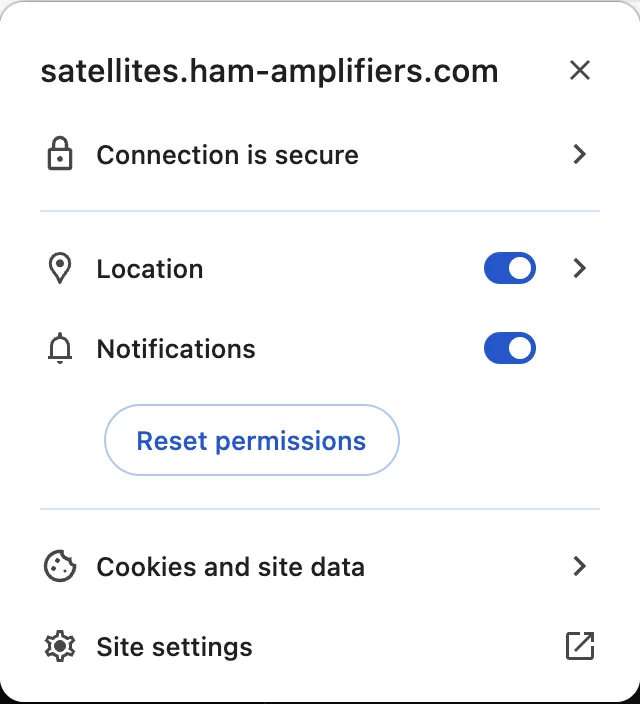
- Site permission: click the icon to the left of the address (a lock or a tune icon) and switch Notifications on. Or open
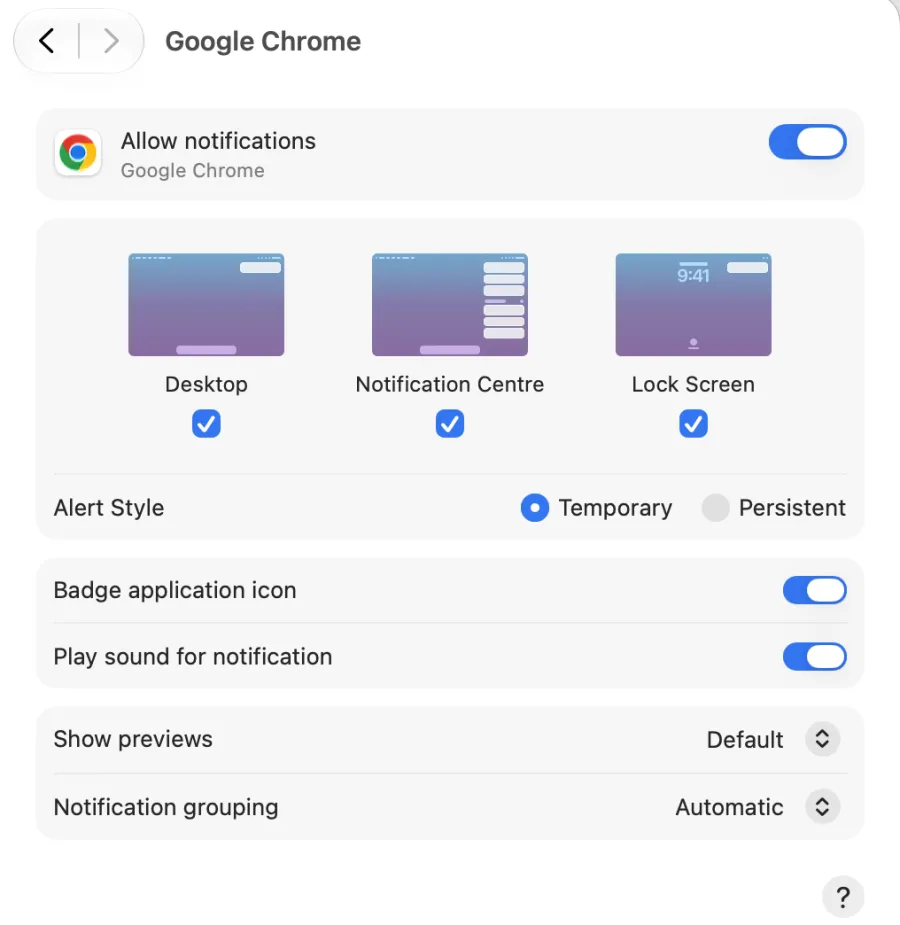
chrome://settings/content/notificationsand check that the site is not blocked. - macOS: System Settings, Notifications, Google Chrome (or Microsoft Edge), and turn on Allow notifications. Choose how they appear: Alert Style (Temporary or Persistent on newer macOS, Banners or Alerts on older versions).
- Focus or Do Not Disturb hides notifications while it is on. Turn it off to test.
Chrome and Edge on Windows
- Site permission: click the icon to the left of the address (a lock or a tune icon) and switch Notifications on. Or open
chrome://settings/content/notifications. - Windows: Settings, System, Notifications, and turn on Google Chrome (or Microsoft Edge).
- Focus assist or Do not disturb silences notifications while it is on. Turn it off to test.
Firefox (desktop)
- Site permission: click the permissions icon at the left of the address bar and allow Notifications. Or open Settings, Privacy & Security, Permissions, Notifications and check the site.
- Then check the operating system settings for Firefox, as described above for macOS or Windows.
Safari on macOS (13 Ventura or newer)
- Safari, Settings, Websites, Notifications: set this site to Allow.
- macOS: System Settings, Notifications, Safari, and turn on Allow notifications.
Android (Chrome)
- Chrome site settings for this site: Notifications must be allowed.
- Android Settings, Apps, Chrome, Notifications: turn them on.
iPhone and iPad
Push notifications work on iPhone and iPad only for a site added to the Home Screen:
- You need iOS or iPadOS 16.4 or newer. Open the site in Safari, tap Share, then Add to Home Screen.
- Open the site from the new Home Screen icon, not from Safari.
- Open a room and press "Notify me".
- If nothing arrives, check Settings, Notifications, and the app with the name of the site.
Do not want to install it? Use Telegram instead (see below).
When the browser is closed
On a computer the browser must be running to receive a push. If Chrome is closed, a notification may still be delivered the next time it starts, if it has not expired by then. On Windows you can turn on "Continue running background apps when Google Chrome is closed" in the Chrome settings (System) to keep receiving them.
Prefer not to bother? Use Telegram
Press "Notify me in Telegram" in a room, tap "Open Telegram" and press Start in the bot. It needs no browser permission and works on any device where you have Telegram.
Good to know
- While a room is open in a tab you are not notified about that room: you already see it.
- The "Notify before passes" switch (on the map and on satellite pages) is different: those notifications are local, and appear only while the site is open in a browser tab or installed as an app. To be reminded with the site closed, put the pass in your calendar: see Put a pass in your calendar.